Showing posts with label Packet Tracer. Show all posts

Saturday, April 28, 2012

Switch interfaces configuration - Packet Tracer


Lab instructions

This lab will test your ability to configure speed, duplex, and vlan settings on a cisco switch interfaces.
1. Connect to Switch0 using console interface and configure each Switch0 fastethernet switchport for operation. Correct settings are :
- Port type : access port
- Speed : 100 Mbit/s
- Duplex mode : Full Duplex
- Autonegotiation disabled

2. PC "192.168.1.4" seems to be unable to ping other PCs in the network. Check switch configuration.
TIP : How many broadcast domains are there in this network ?

3. Choose the right cable to connect :
- Switch0 gigabitethernet 1/1 to Switch1 gigabitethernet 1/1
- Switch1 gigabitethernet 1/2 to Switch2 gigabitethernet 1/2

4. Configure those two links as trunk lines without using trunk negotiation between switches

Network diagram

Packet Tracer 5.3 - Switch interfaces configuration lab network diagram

Solution

Connect to Switch0 using console interface and configure each Switch0 fastethernet switchport for operation.
Switch(config)#interface FastEthernet0/1
switchport mode access
duplex full
speed 100
Switch(config)#interface FastEthernet0/2
switchport mode access
duplex full
speed 100
Switch(config)#interface FastEthernet0/3
switchport mode access
duplex full
speed 100
Switch(config)#interface FastEthernet0/4
switchport mode access
duplex full
speed 100

PC "192.168.1.4" seems to be unable to ping other PCs in the network. Check switch configuration.
Switch(config)#interface FastEthernet0/4
Switch(config-if)#switchport mode access
Switch(config-if)#switchport access vlan 1


Choose the right cable to connect :
- Switch0 gigabitethernet 1/1 to Switch1 gigabitethernet 1/1
- Switch1 gigabitethernet 1/2 to Switch2 gigabitethernet 1/2

Packet Tracer 5.3 - Switch interfaces configuration lab solution

Configure those two links as trunk lines without using trunk negotiation between switches
On every interface that has to be configured for trunk operation, configure the following settings
Switch(config)#interface GigabitEthernet1/X
Switch(config-if)#switchport mode trunk

Verify interface operational mode using the "show interface GigabitEthernet1/X switchport command" :
Name: Gig1/2
Switchport: Enabled
Administrative Mode: trunk
Operational Mode: trunk
Administrative Trunking Encapsulation: dot1q
Operational Trunking Encapsulation: dot1q
Negotiation of Trunking: On
Access Mode VLAN: 1 (default)
Trunking Native Mode VLAN: 1 (default)
Voice VLAN: none
Another usefull ios command is "show interfaces trunk" :
Switch#sh interfaces trunk
Port        Mode         Encapsulation  Status        Native vlan
Gig1/2      on           802.1q         trunking      1

Port        Vlans allowed on trunk
Gig1/2      1-1005

Port        Vlans allowed and active in management domain
Gig1/2      1

Port        Vlans in spanning tree forwarding state and not pruned
Gig1/2      1
 

Basic switch setup - Packet Tracer

Introduction

A new switch just purchased from Cisco contains no default configuration in it. You need to configure the switch with setup mode using the setup mode or from scratch using the command line interface (CLI) before connecting it in your network environment. As a Cisco certified technician, it is very important to know the basic Cisco switch configuration commands to improve the performances and the security of your internetwork.

Lab instructions

This lab will test your ability to configure basic settings on a cisco switch.

1. Use the local laptop connect to the switch console.

2. Configure Switch hostname as LOCAL-SWITCH

3. Configure the message of the day as "Unauthorized access is forbidden"

4. Configure the password for privileged mode access as "cisco". The password must be md5 encrypted

5. Configure password encryption on the switch using the global configuration command

6. Configure CONSOLE access with the following settings :
- Login enabled
- Password : ciscoconsole
- History size : 15 commands
- Timeout : 6'45''
- Synchronous logging

6. Configure TELNET access with the following settings :
- Login enabled
- Password : ciscotelnet
- History size : 15 commands
- Timeout : 8'20''
- Synchronous logging

7. Configure the IP address of the switch as 192.168.1.2/24 and it's default gateway IP (192.168.1.1).

8. Test telnet connectivity from the Remote Laptop using the telnet client.


Network diagram


Solution

Configure Switch hostname as LOCAL-SWITCH
hostname LOCAL-SWITCH

Configure the message of the day as "Unauthorized access is forbidden"
banner motd #
Unauthorized access is forbidden#

Configure the password for privileged mode access as "cisco". The password must be md5 encrypted
enable secret cisco

Configure password encryption on the switch using the global configuration command
service password-encryption

Configure CONSOLE access [...]
line con 0
password ciscoconsole
logging synchronous
login
history size 15
exec-timeout 6 45

Configure TELNET access [...]
line vty 0 15
exec-timeout 8 20
password ciscotelnet
logging synchronous
login
history size 15

Configure the IP address of the switch as 192.168.1.2/24 and it's default gateway IP (192.168.1.1).
interface Vlan1
ip address 192.168.1.2 255.255.255.0
ip default-gateway 192.168.1.1


Packet Tracer - Setting up and managing a DHCP server


Introduction


DHCP (Dynamic Host Configuration Protocol) service is a key component of your network infrastructure by allowing centralized ip address management on a single pool of servers. DHCP configuration is also part of CCNA and CCNP Switch certification exams curricula. This skill can be tested in lab environnement during exams ans it's important for students to get used to DHCP configuration before taking the exam.
Packet Tracer 5.3 implements two methods for setting up a DHCP server in your network :
  • Configuration of DHCP pools on Cisco routers or multlayer switches.
  • Configuration of a standalone DHCP server appliance on the network and usage of the "ip helper-address" command on network devices for DHCP traffic forwarding outside each local broadcast domain. This tutorial will describe this method for implementing DHCP service in your network.

Tutorial description


This tutorial will show you how to configure dynamic IP address assignment on multiple VLAN with a unique DHCP server appliance on the network.
Two VLANs are configured on Switch0 with Router0 as default gateway :
  • VLAN 10 - Nework : 192.168.10.0/24 - Gateway : 192.168.10.1 (FA 0/0.10)
  • VLAN 20 - Network : 192.168.20.0/24 - Gateway : 192.168.20.1 (FA 0/0.20)
The unique DHCP server is located on a remote subnet with IP 172.16.24.2.


DHCP configuration

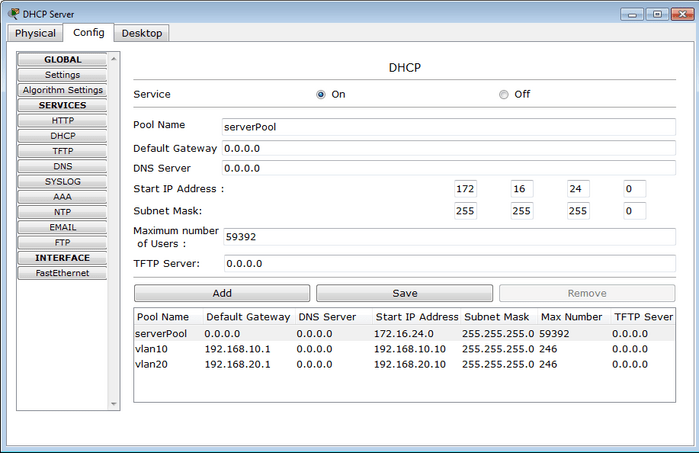
Declare IP address pools on the DHCP management tab of the server like on the picture below. One pool has to be declared for each VLAN. Don't forget to configure the right network settings and default gateway (Router0 FA 0/0.10 and FA 0.0.20 IP address) for each VLAN.

DHCP server configuration on packet tracer 5.3

Configure router0 for DHCP forwarding

Router(config)# interface FastEthernet0/0.10
Router(config-subif)# encapsulation dot1Q 10
Router(config-subif)# ip address 192.168.10.1 255.255.255.0
Router(config-subif)# ip helper-address 172.16.24.2

Router(config)# interface FastEthernet0/0.20
Router(config-subif)# encapsulation dot1Q 20
Router(config-subif)# ip address 192.168.20.1 255.255.255.0
Router(config-subif)# ip helper-address 172.16.24.2

[ Click on Images to Enlarge ]