Friday, April 27, 2012

Difference between Basic and Dynamic disks


Physical disk drives are hardware device that can be installed or attached to a computer for data storage purpose. Windows 2003 should automatically detect any disk drive you install the computer. The main tool which ships with Windows 2003 for disk management is Disk Management MMC snap-in.

You must be a member of the local Administrators group, the Backup Operators group, or have been delegated permission to manage basic and dynamic disks. To format a disk, you require administrator privileges.

Windows 2003 supports two storage types; Basic disks and Dynamic Disks.

Basic Disks

Basic storage uses normal partition tables supported by MS-DOS, Microsoft Windows 95, Microsoft Windows 98, Microsoft Windows Millennium Edition (Me), Microsoft Windows NT, Microsoft Windows 2000, Windows Server 2003 and Windows XP. A disk initialized for basic storage is called a basic disk. A basic disk can have up to four primary partitions or up to three primary partitions and one extended partition. Each primary partition is represented with one logical volume. Each extended partition is represented by one or more logical drives.

Dynamic Disks

Dynamic storage is available in Windows XP Professional, Windows 2000 and Windows 2003 Server. A disk initialized for dynamic storage is called a dynamic disk. A dynamic disk contains dynamic volumes, such as simple volumes, spanned volumes, striped volumes, mirrored volumes, and RAID-5 volumes.
With dynamic disks, we can create fault tolerant volumes. Non-fault tolerant volumes provide no data redundancy. If a non-fault tolerant drive fails, the data can be recovered only from backup. Fault tolerant volumes provide data redundancy. If a fault tolerant drive fails, you can rebuild the volume without having to recover data from backup.


Thursday, April 26, 2012

CCNA Router and Catalyst Switch IOS Command Reference

Router Commands

Terminal Controls:
  • Config# terminal editing - allows for enhanced editing commands
  • Config# terminal monitor - shows output on telnet session
  • Config# terminal ip netmask-format hexadecimal|bit-count|decimal - changes the format of subnet masks

  • Host Name:
  • Config# hostname ROUTER_NAME

  • Banner:
  • Config# banner motd # TYPE MESSAGE HERE # - # can be substituted for any character, must start and finish the message

  • Descriptions:
  • Config# description THIS IS THE SOUTH ROUTER - can be entered at the Config-if level

  • Clock:
  • Config# clock timezone Central -6
    # clock set hh:mm:ss dd month yyyy
     - Example: clock set 14:35:00 25 August 2003

  • Changing The Register:
  • Config# config-register 0x2100 - ROM Monitor Mode
  • Config# config-register 0x2101 - ROM boot
  • Config# config-register 0x2102 - Boot from NVRAM

  • Boot System:
  • Config# boot system tftp FILENAME SERVER_IP - Example: boot system tftp 2600_ios.bin 192.168.14.2
  • Config# boot system ROM
  • Config# boot system flash - Then - Config# reload

  • CDP:
  • Config# cdp run - Turns CDP on
  • Config# cdp holdtime 180 - Sets the time that a device remains. Default is 180
  • Config# cdp timer 30 - Sets the update timer.The default is 60
  • Config# int Ethernet 0
  • Config-if# cdp enable - Enables cdp on the interface
  • Config-if# no cdp enable - Disables CDP on the interface
  • Config# no cdp run - Turns CDP off

  • Host Table:
  • Config# ip host ROUTER_NAME INT_Address - Example: ip host lab-a 192.168.5.1
  • -or-
  • Config# ip host RTR_NAME INT_ADD1 INT_ADD2 INT_ADD3 - Example: ip host lab-a 192.168.5.1 205.23.4.2 199.2.3.2 - (for e0, s0, s1)

  • DNS:
  • Config# ip domain-lookup - Tell router to lookup domain names
  • Config# ip name-server 122.22.2.2 - Location of DNS server
  • Config# ip domain-name cisco.com - Domain to append to end of names

  • Clearing Counters:
  • # clear interface Ethernet 0 - Clears counters on the specified interface
  • # clear counters - Clears all interface counters
  • # clear cdp counters - Clears CDP counters

  • Static Routes:
  • Config# ip route Net_Add SN_Mask Next_Hop_Add - Example: ip route 192.168.15.0 255.255.255.0 205.5.5.2
  • Config# ip route 0.0.0.0 0.0.0.0 Next_Hop_Add - Default route
  • -or-
  • Config# ip default-network Net_Add - Gateway LAN network

  • IP Routing:
  • Config# ip routing - Enabled by default
  • Config# router rip
  • -or-
  • Config# router igrp 100
  • Config# interface Ethernet 0
  • Config-if# ip address 122.2.3.2 255.255.255.0
  • Config-if# no shutdown

  • IPX Routing:
  • Config# ipx routing
  • Config# interface Ethernet 0
  • Config# ipx maximum-paths 2 - Maximum equal metric paths used
  • Config-if# ipx network 222 encapsulation sap - Also Novell-Ether, SNAP, ARPA on Ethernet. Encapsulation HDLC on serial
  • Config-if# no shutdown

  • Access Lists:
    IP Standard1-99
    IP Extended100-199
    IPX Standard800-899
    IPX Extended900-999
    IPX SAP Filters1000-1099

    IP Standard:
  • Config# access-list 10 permit 133.2.2.0 0.0.0.255 - allow all src ip’s on network 133.2.2.0
  • -or-
  • Config# access-list 10 permit host 133.2.2.2 - specifies a specific host
  • -or-
  • Config# access-list 10 permit any - allows any address
  • Config# int Ethernet 0
  • Config-if# ip access-group 10 in - also available: out

    IP Extended:
  • Config# access-list 101 permit tcp 133.12.0.0 0.0.255.255 122.3.2.0 0.0.0.255 eq telnet
        -protocols: tcp, udp, icmp, ip (no sockets then), among others
        -source then destination address
        -eq, gt, lt for comparison
        -sockets can be numeric or name (23 or telnet, 21 or ftp, etc)
  • -or-
  • Config# access-list 101 deny tcp any host 133.2.23.3 eq www
  • -or-
  • Config# access-list 101 permit ip any any
  • Config# interface Ethernet 0
  • Config-if# ip access-group 101 out

  • IPX Standard:
  • Config# access-list 801 permit 233 AA3 - source network/host then destination network/host
  • -or-
  • Config# access-list 801 permit -1 -1 - “-1” is the same as “any” with network/host addresses
  • Config# interface Ethernet 0
  • Config-if# ipx access-group 801 out

  • IPX Extended:
  • Config# access-list 901 permit sap 4AA all 4BB all
        - Permit protocol src_add socket dest_add socket
        -“all” includes all sockets, or can use socket numbers
  • -or-
  • Config# access-list 901 permit any any all any all
        -Permits any protocol with any address on any socket to go anywhere
  • Config# interface Ethernet 0
  • Config-if# ipx access-group 901 in

  • IPX SAP Filter:
  • Config# access-list 1000 permit 4aa 3 - “3” is the service type
    -or-
  • Config# access-list 1000 permit 4aa 0 - service type of “0” matches all services
  • Config# interface Ethernet 0
  • Config-if# ipx input-sap-filter 1000 - filter applied to incoming packets
    -or-
  • Config-if# ipx output-sap-filter 1000 - filter applied to outgoing packets

  • Named Access Lists:
  • Config# ip access-list standard LISTNAME
        -can be ip or ipx, standard or extended
        -followed by the permit or deny list
  • Config# permit any
  • Config-if# ip access-group LISTNAME in
        -use the list name instead of a list number
        -allows for a larger amount of access-lists

  • PPP Setup:
  • Config-if# encapsulation ppp
  • Config-if# ppp authentication chap pap
        -order in which they will be used
        -only attempted with the authentification listed
        -if one fails, then connection is terminated
  • Config-if# exit
  • Config# username Lab-b password 123456
        -username is the router that will be connecting to this one
        -only specified routers can connect
  • -or-
  • Config-if# ppp chap hostname ROUTER
  • Config-if# ppp chap password 123456
        -if this is set on all routers, then any of them can connect to any other
        -set same on all for easy configuration

    ISDN Setup:
  • Config# isdn switch-type basic-5ess - determined by telecom
  • Config# interface serial 0
  • Config-if# isdn spid1 2705554564 - isdn “phonenumber” of line 1
  • Config-if# isdn spid2 2705554565 - isdn “phonenumber” of line 2
  • Config-if# encapsulation PPP - or HDLC, LAPD

  • DDR - 4 Steps to setting up ISDN with DDR
    1. Configure switch type

    2. Config# isdn switch-type basic-5ess - can be done at interface config

    3. Configure static routes

    4. Config# ip route 123.4.35.0 255.255.255.0 192.3.5.5 - sends traffic destined for 123.4.35.0 to 192.3.5.5
      Config# ip route 192.3.5.5 255.255.255.255 bri0 - specifies how to get to network 192.3.5.5 (through bri0)

    5. Configure Interface

    6. Config-if# ip address 192.3.5.5 255.255.255.0
      Config-if# no shutdown
      Config-if# encapsulation ppp
      Config-if# dialer-group 1 - applies dialer-list to this interface
      Config-if# dialer map ip 192.3.5.6 name Lab-b 5551212
          connect to lab-b at 5551212 with ip 192.3.5.6 if there is interesting traffic
          can also use “dialer string 5551212” instead if there is only one router to connect to

    7. Specify interesting traffic

    8. Config# dialer-list 1 ip permit any
      -or-
      Config# dialer-list 1 ip list 101 - use the access-list 101 as the dialer list

    9. Other Options

    10. Config-if# hold-queue 75 - queue 75 packets before dialing
      Config-if# dialer load-threshold 125 either
          -load needed before second line is brought up
          -“125” is any number 1-255, where % load is x/255 (ie 125/255 is about 50%)
          -can check by in, out, or either
      Config-if# dialer idle-timeout 180
          -determines how long to stay idle before terminating the session
          -default is 120
    Frame Relay Setup
  • Config# interface serial 0
  • Config-if# encapsulation frame-relay - cisco by default, can change to ietf
  • Config-if# frame-relay lmi-type cisco - cisco by default, also ansi, q933a
  • Config-if# bandwidth 56
  • Config-if# interface serial 0.100 point-to-point - subinterface
  • Config-if# ip address 122.1.1.1 255.255.255.0
  • Config-if# frame-relay interface-dlci 100
        -maps the dlci to the interface
        -can add BROADCAST and/or IETF at the end
  • Config-if# interface serial 1.100 multipoint
  • Config-if# no inverse-arp - turns IARP off; good to do
  • Config-if# frame-relay map ip 122.1.1.2 48 ietf broadcast
        -maps an IP to a dlci (48 in this case)
        -required if IARP is turned off
        -ietf and broadcast are optional
  • Config-if# frame-relay map ip 122.1.1.3 54 broadcast

  • Show Commands
  • Show access-lists - all access lists on the router
  • Show cdp - cdp timer and holdtime frequency
  • Show cdp entry * - same as next
  • Show cdp neighbors detail - details of neighbor with ip add and ios version
  • Show cdp neighbors - id, local interface, holdtime, capability, platform portid
  • Show cdp interface - int’s running cdp and their encapsulation
  • Show cdp traffic - cdp packets sent and received
  • Show controllers serial 0 - DTE or DCE status
  • Show dialer - number of times dialer string has been reached, other stats
  • Show flash - files in flash
  • Show frame-relay lmi - lmi stats
  • Show frame-relay map - static and dynamic maps for PVC’s
  • Show frame-relay pvc - pvc’s and dlci’s
  • Show history - commands entered
  • Show hosts - contents of host table
  • Show int f0/26 - stats of f0/26
  • Show interface Ethernet 0 - show stats of Ethernet 0
  • Show ip - ip config of switch
  • Show ip access-lists - ip access-lists on switch
  • Show ip interface - ip config of interface
  • Show ip protocols - routing protocols and timers
  • Show ip route - Displays IP routing table
  • Show ipx access-lists - same, only ipx
  • Show ipx interfaces - RIP and SAP info being sent and received, IPX addresses
  • Show ipx route - ipx routes in the table
  • Show ipx servers - SAP table
  • Show ipx traffic - RIP and SAP info
  • Show isdn active - number with active status
  • Show isdn status - shows if SPIDs are valid, if connected
  • Show mac-address-table - contents of the dynamic table
  • Show protocols - routed protocols and net_addresses of interfaces
  • Show running-config - dram config file
  • Show sessions - connections via telnet to remote device
  • Show startup-config - nvram config file
  • Show terminal - shows history size
  • Show trunk a/b - trunk stat of port 26/27
  • Show version - ios info, uptime, address of switch
  • Show vlan - all configured vlan’s
  • Show vlan-membership - vlan assignments
  • Show vtp - vtp configs

  • Catalyst Commands For Native IOS - Not CatOS
    Switch Address:
  • Config# ip address 192.168.10.2 255.255.255.0
  • Config# ip default-gateway 192.168.10.1

  • Duplex Mode:
  • Config# interface Ethernet 0/5 - “fastethernet” for 100 Mbps ports
  • Config-if# duplex full - also, half | auto | full-flow-control

  • Switching Mode:
  • Config# switching-mode store-and-forward - also, fragment-free

  • MAC Address Configs:
  • Config# mac-address-table permanent aaab.000f.ffef e0/2 - only this mac will work on this port
  • Config# mac-address-table restricted static aaab.000f.ffef e0/2 e0/3
        -port 3 can only send data out port 2 with that mac
        -very restrictive security

  • Config-if# port secure max-mac-count 5 - allows only 5 mac addresses mapped to this port

  • VLANS:
  • Config# vlan 10 name FINANCE
  • Config# interface Ethernet 0/3
  • Config-if# vlan-membership static 10

  • Trunk Links:
  • Config-if# trunk on - also, off | auto | desirable | nonegotiate
  • Config-if# no trunk-vlan 2
        -removes vlan 2 from the trunk port
        -by default, all vlans are set on a trunk port

  • Configuring VTP:
  • Config# delete vtp - should be done prior to adding to a network
  • Config# vtp server - the default is server, also client and transparent
  • Config# vtp domain Camp - name doesn’t matter, just so all switches use the same
  • Config# vtp password 1234 - limited security
  • Config# vtp pruning enable - limits vtp broadcasts to only switches affected
  • Config# vtp pruning disable

  • Flash Upgrade
  • Config# copy tftp://192.5.5.5/configname.ios opcode - “opcode” for ios upgrade, “nvram” for startup config

    Delete Startup Config:
  • Config# delete nvram


  • Cabling Cisco Devices

    Unshielded Twisted Pair (UTP) is a cable that has four pairs of wires twisted inside it to eliminate electrical interference. UTP cables are connected using RJ-45 connectors that have eight connector pins. The data equipment that is used for internetworking is classified as Data Terminal Equipment (DTE e.g. router interfaces) and Data Communication Equipment (DCE e.g. A WAN connects DTEs through DCE network). 

    UTP cables are used in many configurations and for different purposes, to form an internetwork including:
    • Straight-through
    • Crossover
    • Rollover
    Applications of UTP include:
    • Serial transmission
    • Integrated Service Digital Network (ISDN) connections
    • Console connections
    • Modular and fixed interfaces
    These configurations and applications are discussed below. 

    Straight-Through Cable
    A straight-through cable is the standard network cable connection and is used to connect the source and destination computers through an internetworking device. Specifically, you can use it to connect a host to a hub or switch 

    Crossover Cable
    In a crossover cable, the standard RJ-45 cable between the source and destination computers is cross-connected. A crossover cable can be used to connect:
    • Two computers
    • Two hubs
    • A hub to a switch
    • A cable modem to a router
    • Two router interfaces

    Rollover Cable
    These Cisco proprietary cables used to connect to a router or switch console port. In a rollover cable (8 pins), RJ-45 connectors are usually present at each ends and are used to connect router and computer ports. Pin 1 on one end of cable connects to Pin 8 at the other end of the cable, similarly, Pin 2 connects Pin 7, and so on. 

    Serial Transmission
    All WANs use serial transmission, which can pass one bit at a time over a single channel. Cisco provides a 60-pin serial connector for one end of the cable while other end of the cable may be EIA/TIA-232, V.35, EIA/TIA-449, X.21 or others; 

    ISDN Connections
    ISDN refers to a collection of standards that define a digital architecture that can carry integrated voice and data, using the public-switched network. ISDN BRI (Basic Rate Interface) is a two 64 kbps Bearer channels (2B) plus one 16 kbps Data channel (D) service. ISDN BRI terminates at the customer premise with the U interface. 

    Console Connections
    A console is a type of DTE through which commands are entered into the host device. Most Cisco devices support the RJ-45 console connection. A rollover cable with an RJ-45 connector is used to connect the PC or terminal to the console port of the Cisco device.

    Modular and Fixed Interfaces
    Unlike a fixed interface router, a modular interface router allows you to add new interface cards without buying a new router. 

    In the fixed interface series, you refer to the interfaces as: 
    interface_type interface_number

    For example, the first serial interface on a Cisco 2503 router would be referred to as serial 0. Higher routers have modular interfaces that allow you to change the interfaces as and when required. Here, the interfaces are referred to as:
    interface_type module_number/interface_number

    To practice such commands you can download a free CCNA router simulator from SemSim.com and proceed to the troubleshooting 1 exercise that configures ethernet 0 interface.

    The figure displays the various cables used to connect different networking and internetworking devices.

    Internetwork Connections

    You can mail me to abhi.82@aol.in
    Please  post any  suggestions or comments.

    How to Setup Network Between VirtualBox and VMware Virtual Machines

    Mostly in testing environment you may have to setup network between virtual machines which are running on VMware workstation and VirtualBox. These separate virtual machines can be on same host or different host. Setting up network on same desktop virtualization software is very easy once you understand the available network type. How about in different virtualization software platforms?. This post shows how to setup network between VirtualBox and VMware virtual machines.

    Two scenarios considered here.

    1) Both software running on same physical computer with several virtual machines.
    2) Both software running on different physical computers on network.
    Without moving virtual machines to particular desktop virtualization software, you can use this method to make a network among them, no matter where its running.
    For example, when you have a domain controller virtual machine on VMware, you can join VirtualBox virtual machines to domain from same or different host.
    There are few network types available on both products, such as NAT and Bridged (to communicate to physical network), Host only type for network between guest and host, and Internal type for network among virtual machines.

    Network Between VirtualBox and VMware Virtual machines – Both running on same host – Scenario 1

    When physical live network available on your computer, for example at office, you definitely do not want to mess up virtual machines with office network. So, setting up bridged network type to physical network card with DHCP enabled is not a good idea, because it may create issues on your office network.
    Next option is using ‘VirtualBox host only adapter’ as a physical common network card and bridge it to VMware. Do not confuse, follow the steps.
    1) Make sure to enable ‘ VirtualBox Host-Only Ethernet Adapter’ in  host computer.
    2) Set network type to ‘Host-only Adapter’ in VirtualBox virtual machine, which you want to connect with VMware virtual machine.

    Network Between VirtualBox and VMwar3) By default VirtualBox host only adapter will be issuing IP address (as DHCP server) to clients in 192.168.56.0 series. You can keep DHCP or change it to manual, its up to you.
    4) Now go to VMware Virtual Network Editor. It came with workstation only. VMplayer doesn’t have this option.

    NOTE – When using VMware Player, you can select ‘Bridged Network’ type for virtual machine on VMware. This will not create any issues when physical network is not active or DHCP is not available on live network. If DHCP is available on LAN, VMware virtual machine will get physical LAN IP instead on VirtualBox host only adapter IP range. In this case, you must use manual IP on all VMs in VMware and VB.

    Network Between VirtualBox and VMwar
    Changing ‘Automatic’ to VirtualBox Host Only Adapter network type will separate VM’s network from physical LAN as shown above. VMnet0 configured with above settings.
    5) On network settings of virtual machine, change the network type to custom and point to network name you modified in above step.

    desktop virtualization software
    Add caption
    6) Now guest OS on VMware will be getting DHCP from VirtualBox network. Manual IP in same range also will work in this setup.
    Check the guest OS firewall on both machines. Now we have successfully setup network between virtual machines in VirtualBox and VMware.
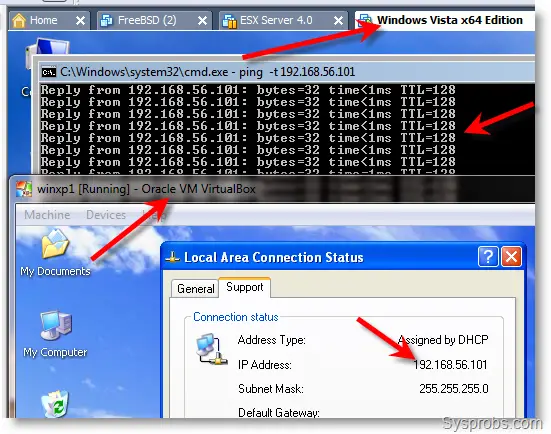
    Here is the working network, I can ping from Windows vista on VMware to Windows XP on Oracle VirtualBox.

    working_network

    Scenario 2, VMware and VirtualBox Running on Different Hosts

    Obviously we have to your physical LAN to connect virtual machines in different hosts.
    1) Select bridged network type on virtual machines settings in VirtualBox. Point the network adapter to LAN network card which is connected to other VMware host.

    desktop virtualization software
    If DHCP available on physical LAN, your VM will get IP automatically, otherwise provide the manual IP, it depends on you.
    2) Now on the VMware virtual machine’s settings, go to network settings and changed to ‘Bridged’ type.
    In this way, this VM will communicate to VirtualBox VM you configured in earlier step. Again, DHCP and manual IP address is optional depends on your network. Check the both guest OS firewall settings also.

    desktop virtualization software
    I use both cases to configure network among virtual machines running on different software. Its working pretty well.

    [ Click on Images to Enlarge ]

    You can mail me to abhi.82@aol.in
    Please  post any  suggestions or comments.

    Enable or Disable Virtualization Technology in BIOS

    Virtualization Technology in BIOS

    This post explains how to enable Virtualization Technology (VT) in motherboard BIOS. To run some operating systems, virtualization software and virtual machines hardware virtualization should be enabled. Mostly, operating systems which not required virtualization technology run normally when virtualization technology is enabled, but for the operating systems required this technology, it must be enabled.
    All latest processors and motherboards support virtualization technology, check your motherboard vendor about this support and how to enable or disable VT in BIOS.  Operating system detects the hardware virtualization technology once it’s enabled on your motherboard.
    You must disable it, if you want to run Mac on Windows (VMWare).

    Where to Find Virtualization Technology (VT) in BIOS?

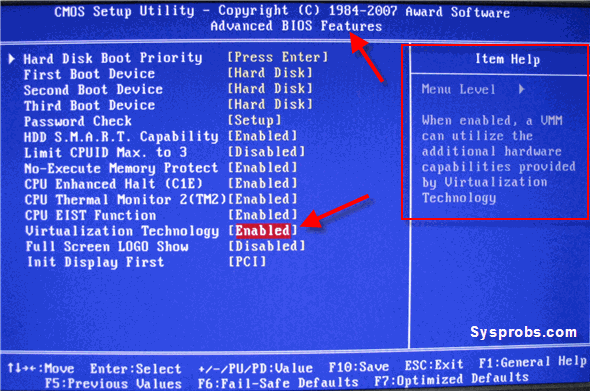
    This setting is found under ‘Advanced Chipset settings’ in AWARD BIOS. It will be different for each motherboard. Check your mother board manual.

    enable vt-x in bios

    After you change the settings to disable or enable, it’s recommended to shutdown the computer for minimum 10 seconds and restart the machine (Cold Restart) to take effects. If your motherboard is latest one, it detects this change doe’s cold restart. Whenever I change this VT setting on my motherboard, it delays the next restart automatically.

    How to Confirm Virtualization Technology is Enabled or Disabled?

    1) If your processor is Intel, then you can use this free utility to confirm the result which operating system is sensing.

    Download Intel tool to confirm virtualization technology

    The result of this utility brings a screen as shown below,

    Enable Virtualization Technology (VT)

    2) For AMD Processors download the below utility.

    3) Microsoft Tool to check hardware virtualization Technology ( VT)

    Download the free tool from Microsoft here.

    Installation not required, when execute the EXE file, following result appears.

    Enable Virtualization Technology (VT)

    The above result shown is other computer which is not having hardware enabled.

    [ Click on Images to Enlarge ]

    You can mail me to abhi.82@aol.in
    Please  post any  suggestions or comments.

    Wednesday, April 25, 2012

    ASCII Table

    Char Hex Dec Name Char Hex Dec Name
    NUL 00 0 Null @ 40 64 Commercial At
    SOH 01 1 Start of Header A 41 65  
    STX 02 2 Start of Text B 42 66  
    ETX 03 3 End of Text C 43 67  
    EOT 04 4 End of Transmission D 44 68  
    ENQ 05 5 Enquire E 45 69  
    ACK 06 6 Acknowledge F 46 70  
    BEL 07 7 Bell G 47 71  
    BS 08 8 Backspace H 48 72  
    HT 09 9 Horizontal Tab I 49 73  
    LF 0A 10 Line Feed J 4A 74  
    VT 0B 11 Vertical Tab K 4B 75  
    FF 0C 12 Form Feed L 4C 76  
    CR 0D 13 Carriage Return M 4D 77  
    SO 0E 14 Shift Out N 4E 78  
    SI 0F 15 Shift In O 4F 79 Letter O
    DLE 10 16 Data Link Escape P 50 80  
    DC1 11 17 Device Control 1 Q 51 81 Letter Q
    DC2 12 18 Device Control 2 R 52 82  
    DC3 13 19 Device Control 3 S 53 83  
    DC4 14 20 Device Control 4 T 54 84  
    NAK 15 21 Negative Acknowledge U 55 85  
    SYN 16 22 Synchronous Idle V 56 86  
    ETB 17 23 End of Transmission block W 57 87  
    CAN 18 24 Cancel X 58 88  
    EM 19 25 End of Medium Y 59 89  
    SUB 1A 26 Substitute Z 5A 90  
    ESC 1B 27 Escape [ 5B 91 Open Square Bracket
    FS 1C 28 File Separator \ 5C 92 Back slash
    GS 1D 29 Group Separator ] 5D 93 Close Square Bracket
    RS 1E 30 Record Separator ^ 5E 94 Circumflex/caret
    US 1F 31 Unit Separator _ 5F 95 Underscore
    SP 20 32 Space or Blank ' 60 96 Single Quote
    ! 21 33 Exclamation Point a 61 97  
    " 22 34 Quotation Mark b 62 98  
    # 23 35 Number sign (Pound sign) c 63 99  
    $ 24 36 Dollar Sign d 64 100  
    % 25 37 Percent Sign e 65 101  
    & 26 38 Ampersand f 66 102  
    ' 27 39 Apostrophe (Single quote) g 67 103  
    ( 28 40 Opening Parenthesis h 68 104  
    ) 29 41 Closing Parenthesis i 69 105  
    * 2A 42 Asterisk (Star sign) j 6A 106  
    + 2B 43 Plus Sign k 6B 107  
    , 2C 44 Comma l 6C 108  
    - 2D 45 Hyphen (Minus) m 6D 109  
    . 2E 46 Dot (Period) n 6E 110  
    / 2F 47 Forward Slash o 6F 111 lower case o
    0 30 48 Zero p 70 112  
    1 31 49   q 71 113  
    2 32 50   r 72 114  
    3 33 51   s 73 115  
    4 34 52   t 74 116  
    5 35 53   u 75 117  
    6 36 54   v 76 118  
    7 37 55   w 77 119  
    8 38 56   x 78 120  
    9 39 57   y 79 121  
    : 3A 58 Colon z 7A 122  
    ; 3B 59 Semi Colon { 7B 123 Open Curly Bracket
    < 3C 60 Less Than | 7C 124 OR (Pipe)
    = 3D 61 Equality } 7D 125 Close Curly Bracket
    > 3E 62 Greater Than ~ 7E 126 Equivalence (tilde)
    ? 3F 63 Question Mark DEL 7F 127 Delete